How to Join a Zoom Meeting
Zoom Instructions for Attendees
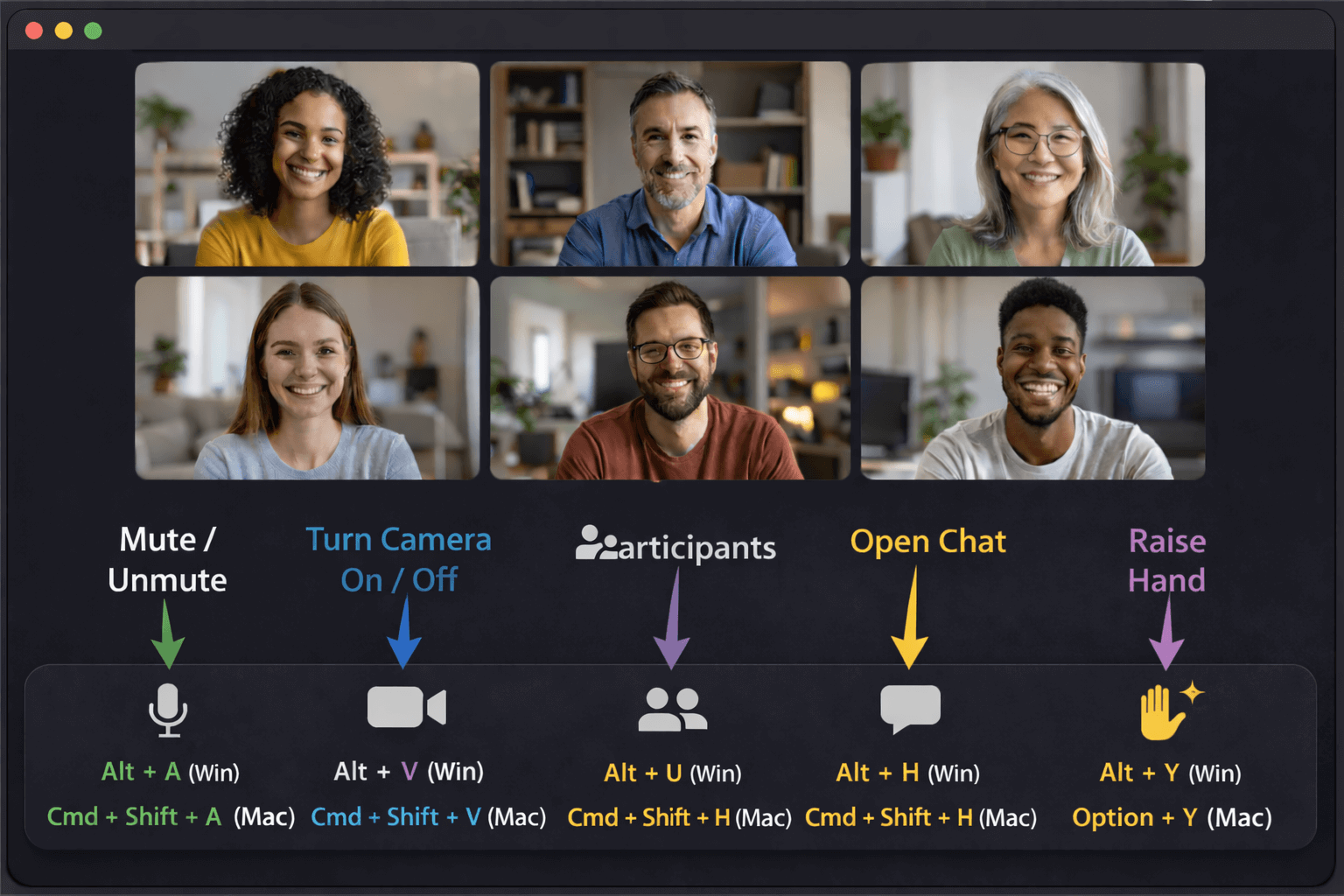
During our live Zoom sessions, you may want to ask a question, respond to something being said, or participate in the discussion. The Zoom controls you need are located in the toolbar at the bottom of the Zoom window.
Here are the most important controls and keyboard shortcuts to know.
Open the Chat Panel + Type in the Chat
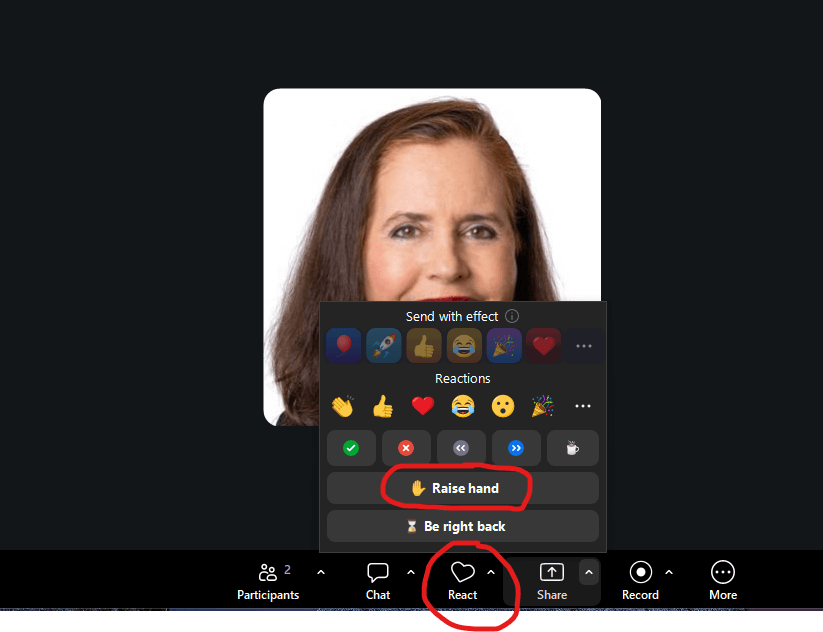
Chat allows you to send messages or ask questions without interrupting the speaker.
-
- Click Chat in the Zoom toolbar.
- Type your message and press Enter.
Keyboard shortcuts:
Windows: Alt + H
Mac: Command + Shift + H
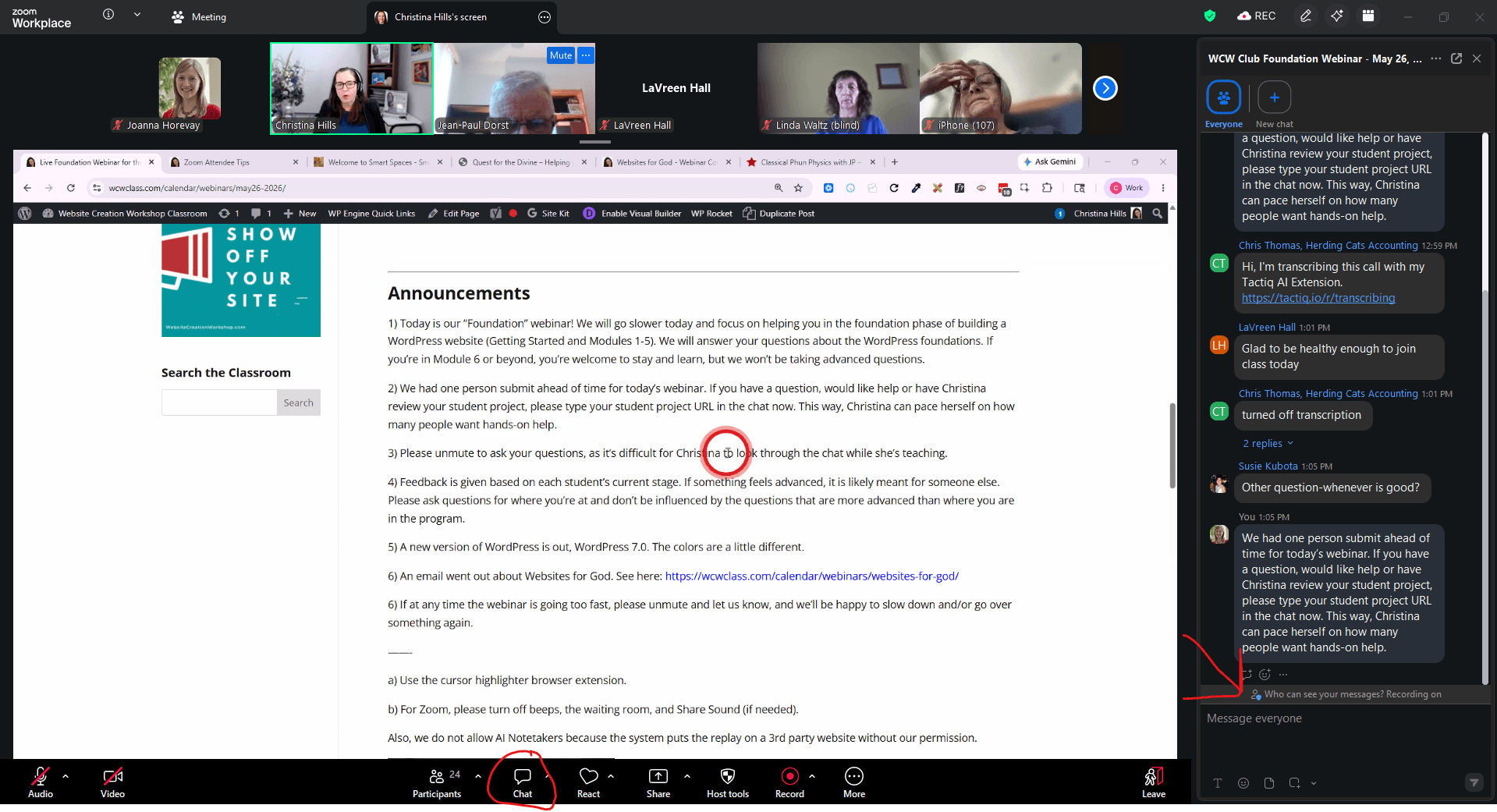
React During the Meeting
You can send quick reactions (like a thumbs up or applause) without speaking.
-
- Click Reactions in the Zoom toolbar and choose a reaction.
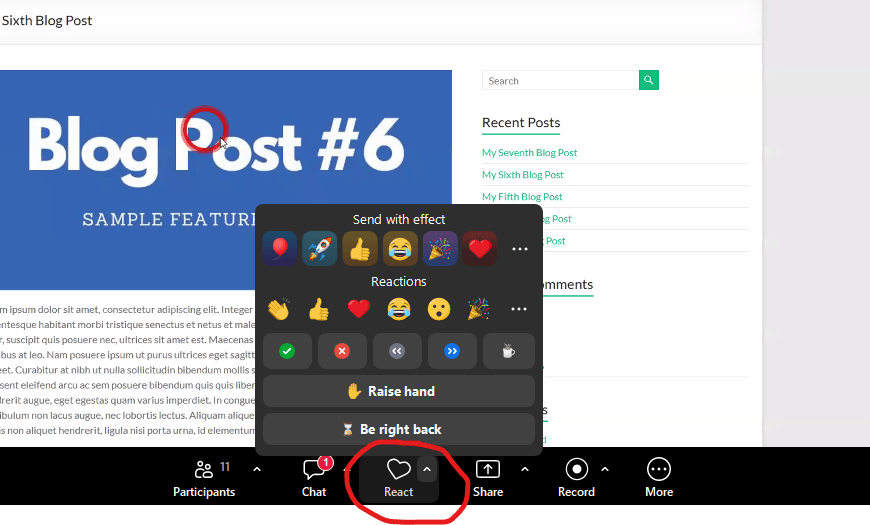
Raise Your Hand to Ask a Question
If you would like to speak or ask a question, please raise your hand so the host can see you would like to talk.
-
- Click Reactions and select Raise Hand.
Keyboard shortcut:
Windows: Alt + Y
Mac: Option + Y
When the host calls on you, simply unmute your microphone and begin speaking.
Mute and Unmute Your Microphone
To reduce background noise, please keep your microphone muted when you are not speaking.
-
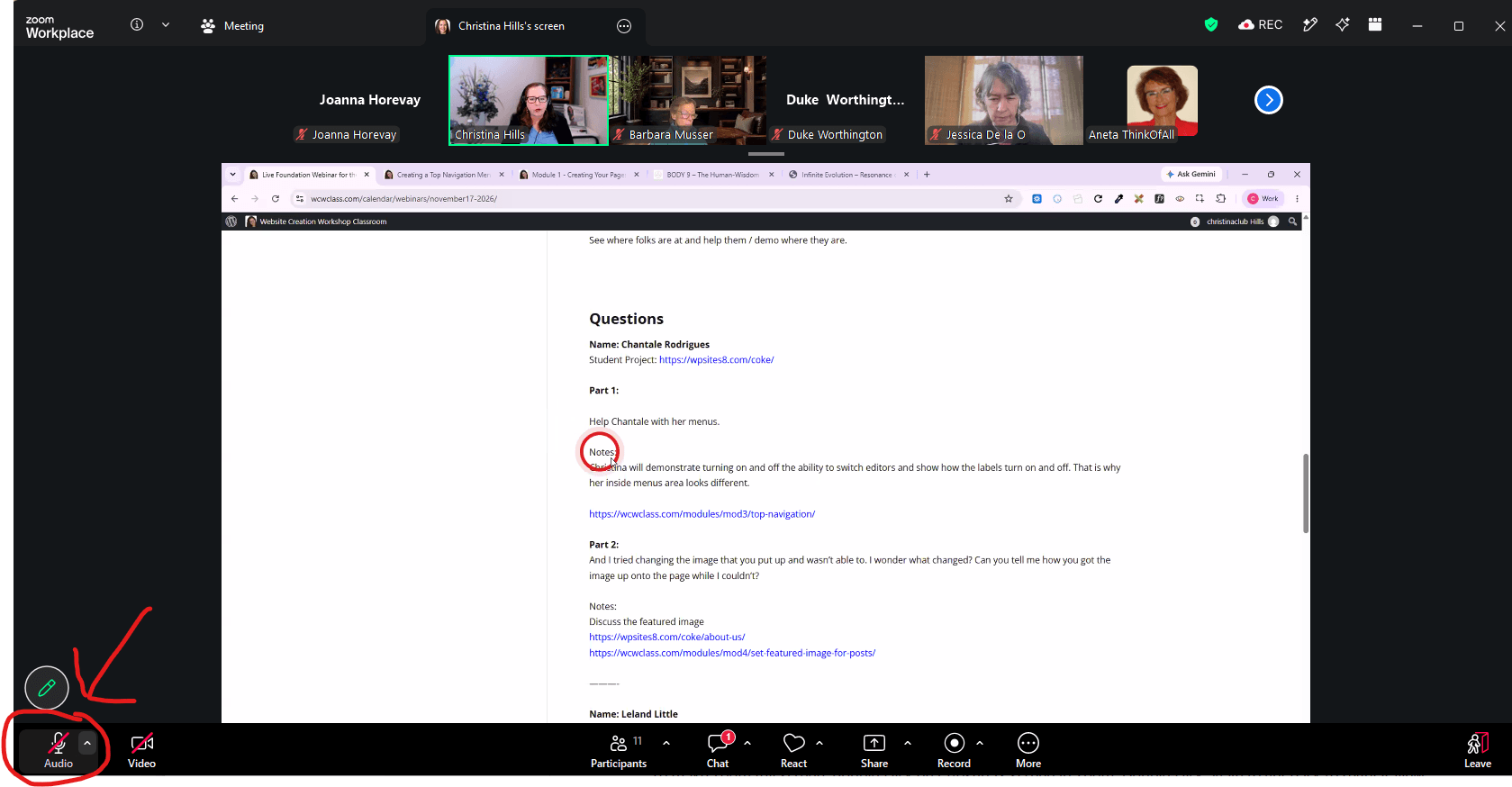
- Click the microphone icon in the Zoom toolbar to mute or unmute.
Keyboard shortcuts:
Windows: Alt + A
Mac: Command + Shift + A
Helpful Tip: Temporarily Unmute
If you are muted and need to say something quickly, you can temporarily unmute yourself by holding down the spacebar while you speak. When you release the spacebar, you will be muted again.
Turn Your Camera On or Off
If you would like to appear on video during the meeting, you can turn your camera on.
-
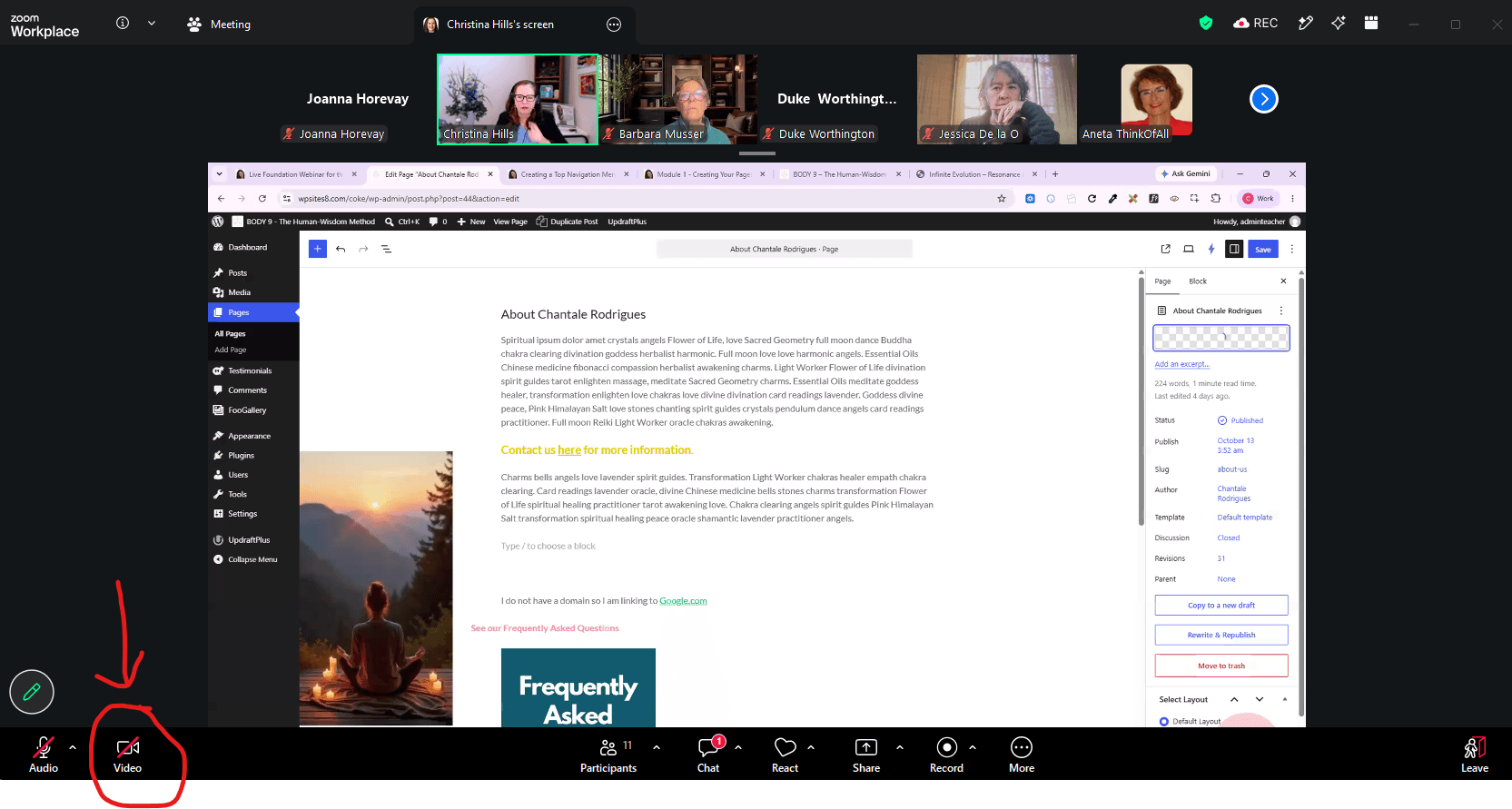
- Click the camera icon in the Zoom toolbar to turn your video on or off.
Keyboard shortcuts:
Windows: Alt + V
Mac: Command + Shift + V
Make Zoom Fullscreen
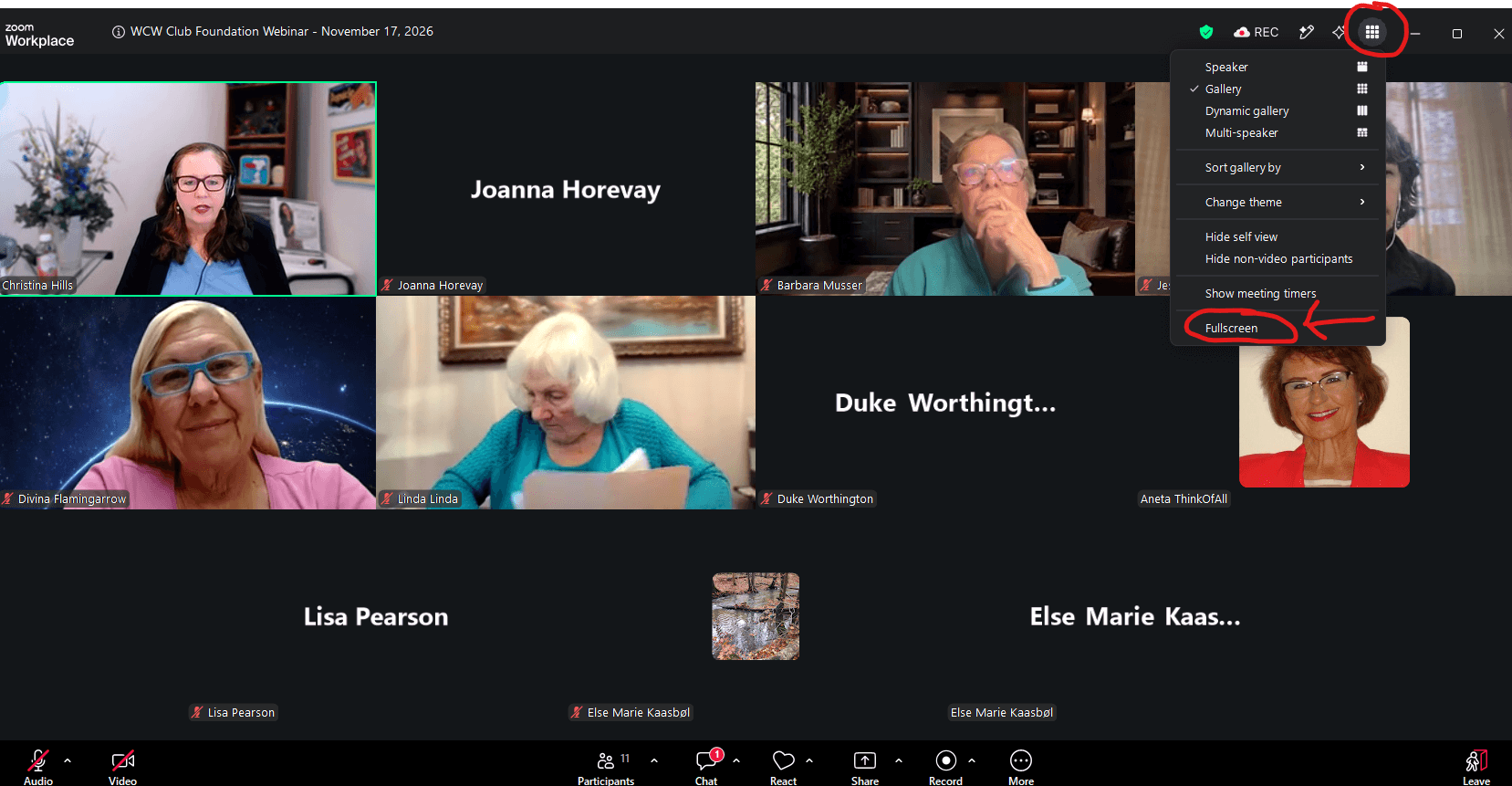
To make Zoom full-screen, double-click on Christina’s screen in Zoom. Double-click again to get back to regular view.
Alternatively, hover over the 9 dots towards the top right and click on “Fullscreen.”
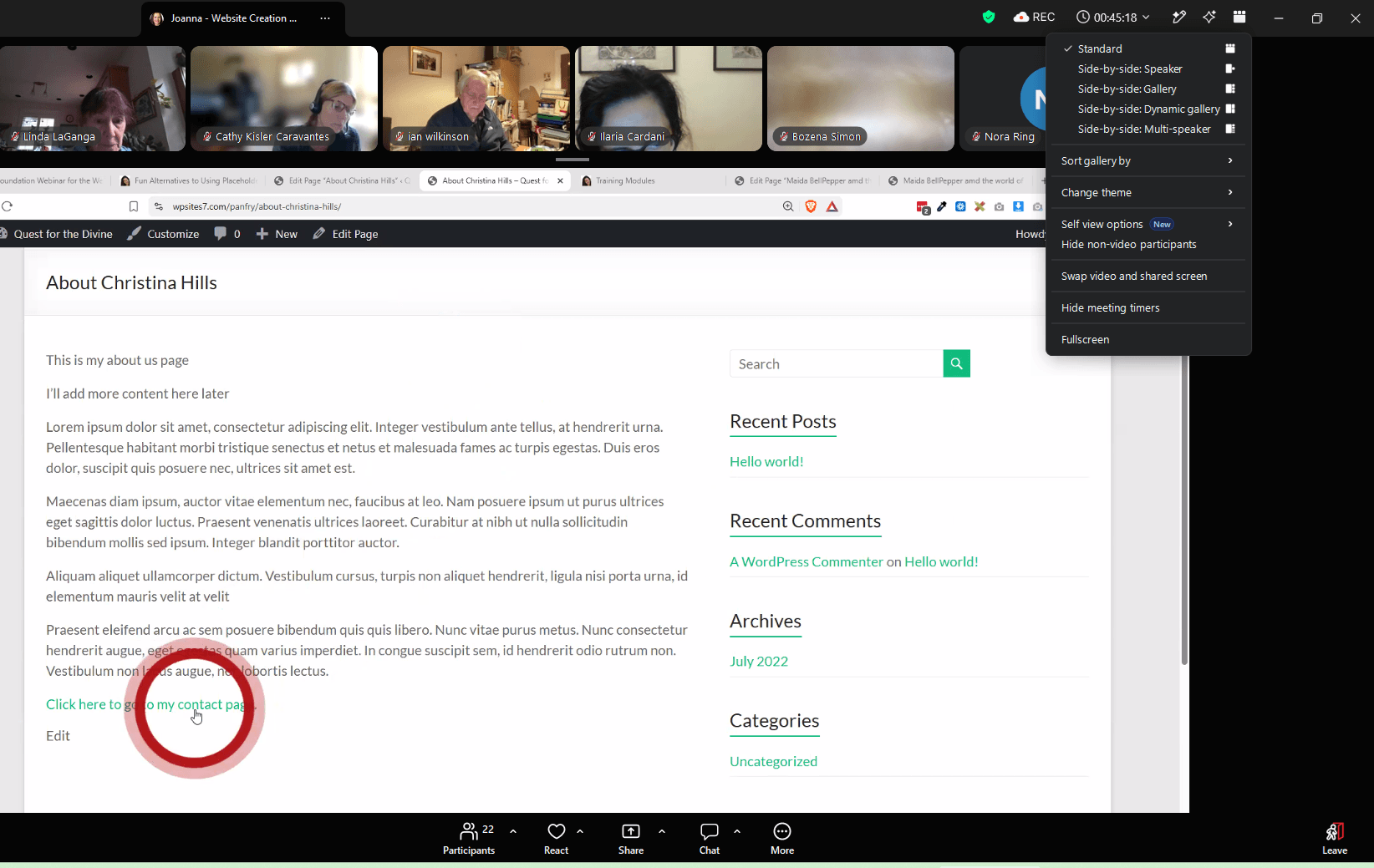
Zoom Participant Viewing Options
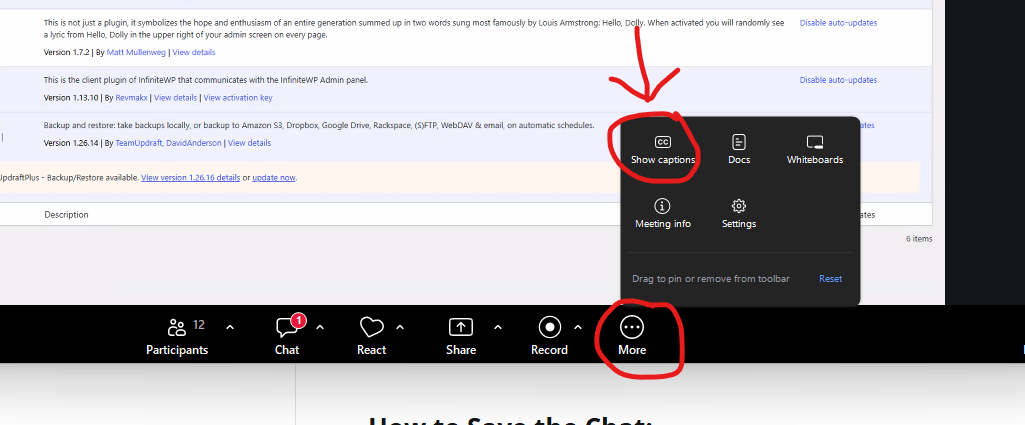
Enable Captions
Click on More –> Show Captions
See the Participants List
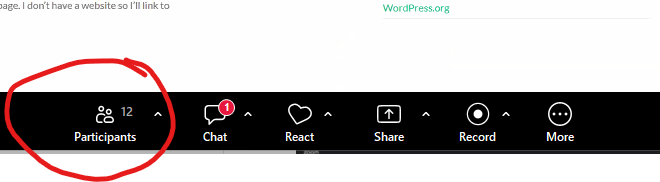
You can view everyone attending the meeting by opening the participants panel.
-
- Click Participants in the Zoom toolbar.
Keyboard shortcuts:
Windows: Alt + U
Mac: Command + U
How to Save the Chat:
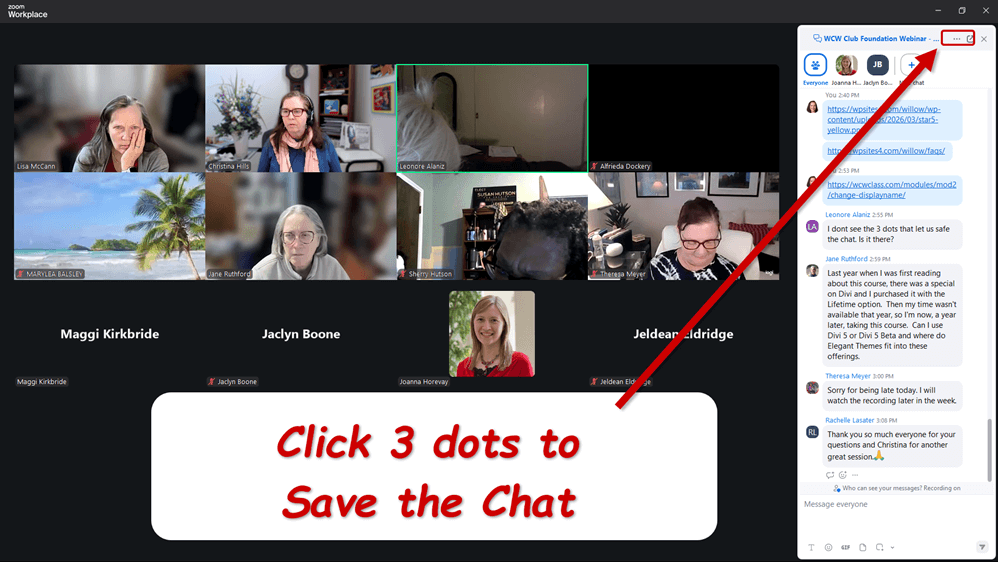
Click the 3 dots in the upper right to save the chat.