
When it comes to our classroom video trainings, we use either GoToWebinar or Zoom. For those of you who are not familiar with the GoToWebinar system, we’ve provided some helpful videos, below. These will help you get the most out of your trainings, as you won’t be stumbling around, trying to figure out how the webinar system works. This page will show you not only how to register ahead of time for a webinar, but also how to get on one quickly and easily–without wasting precious time.
How to Register for a GoToWebinar
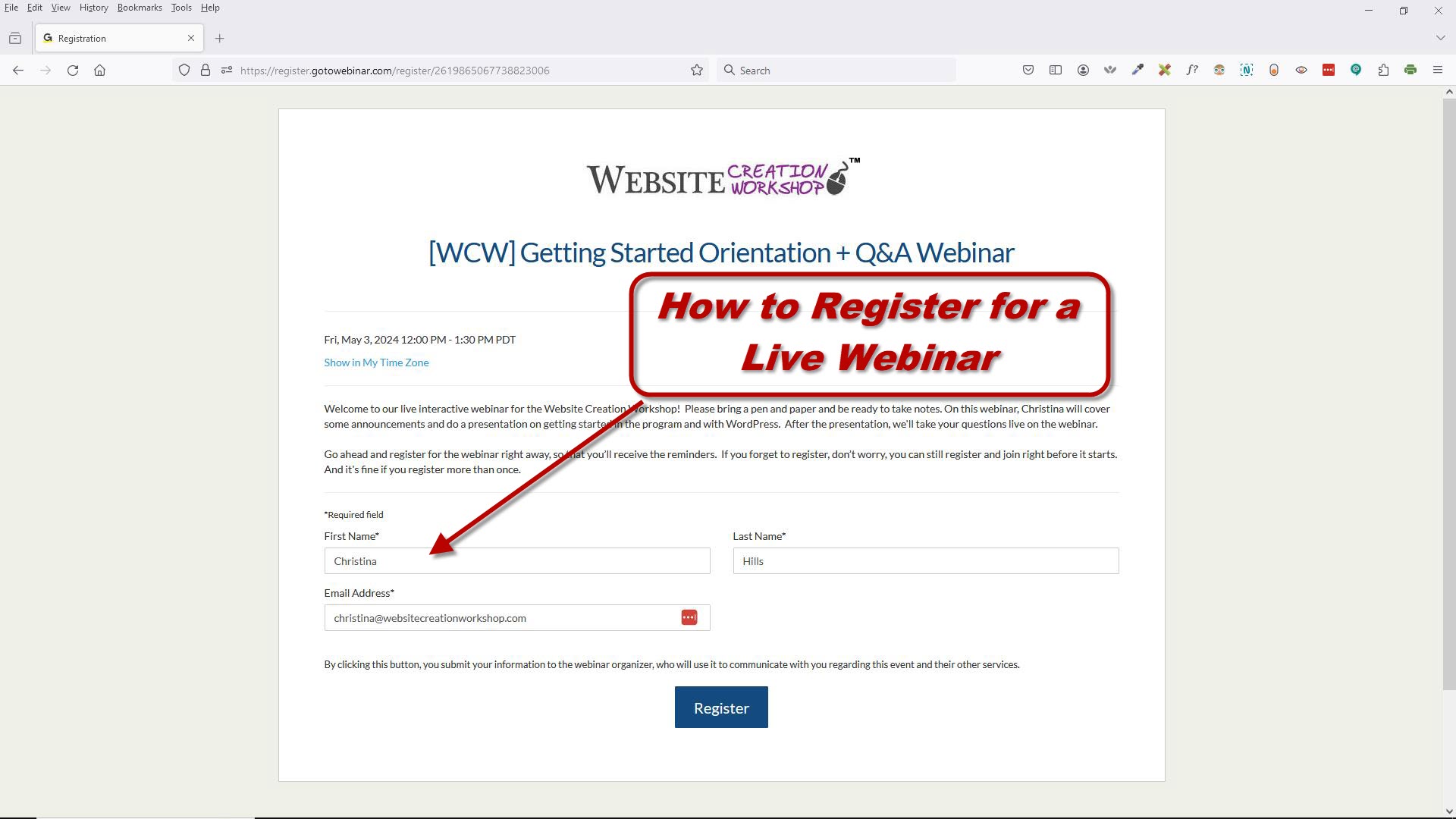
Description: In this video, Christina demonstrates registering for a webinar, and how to add it to your calendar. You can learn how to get on a webinar, below. (Length: 1 min. 46 sec.)
How to Get on a GoToWebinar Using the App
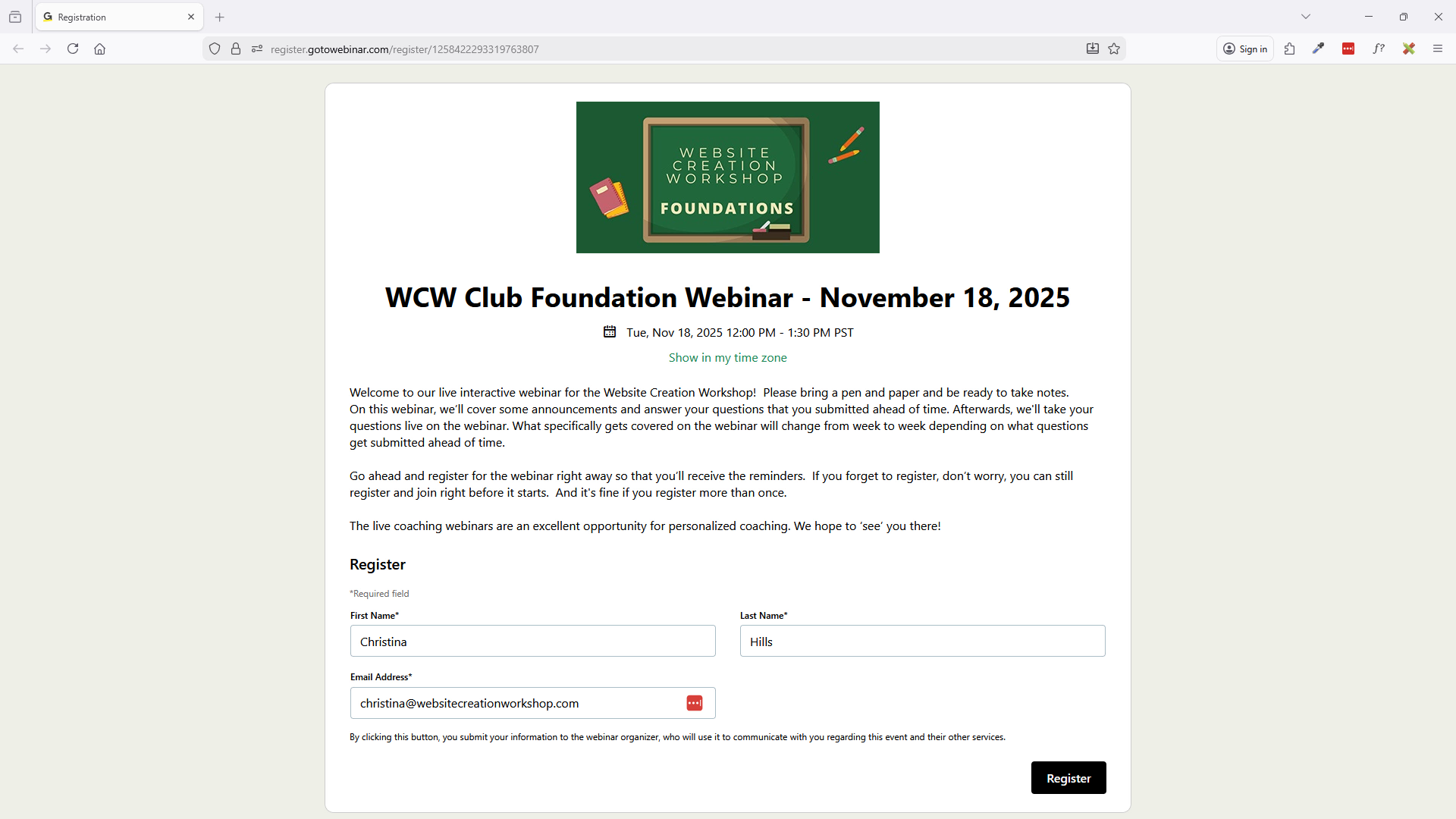

Description:
In this video, the Website Creation Workshop’s tech coach, Joanna, reviews how to get on a webinar using the GoToWebinar app. (She also touches a bit on joining from a browser, but focuses mainly on using the app.) You’ll learn how to zoom, use closed captions, use the app’s settings, and access important areas, such as “Questions” and “Chat.” We recommend everyone watch this! (Length: 8 min. 53 sec.)
***Want to join via a browser? Go here: https://wcwclass.com/calendar/join-gotowebinar-browser/
How to Ask a Question/Comment
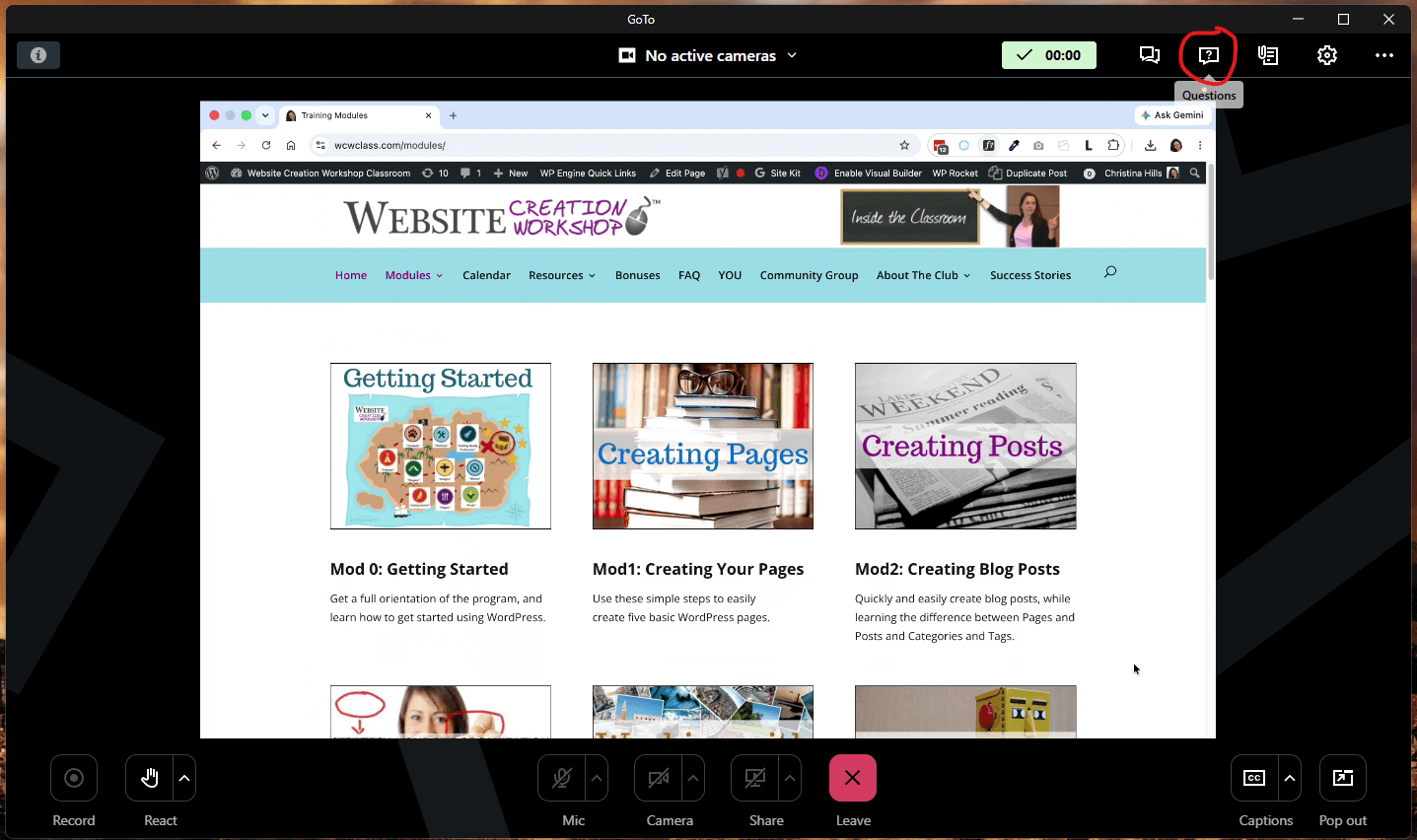
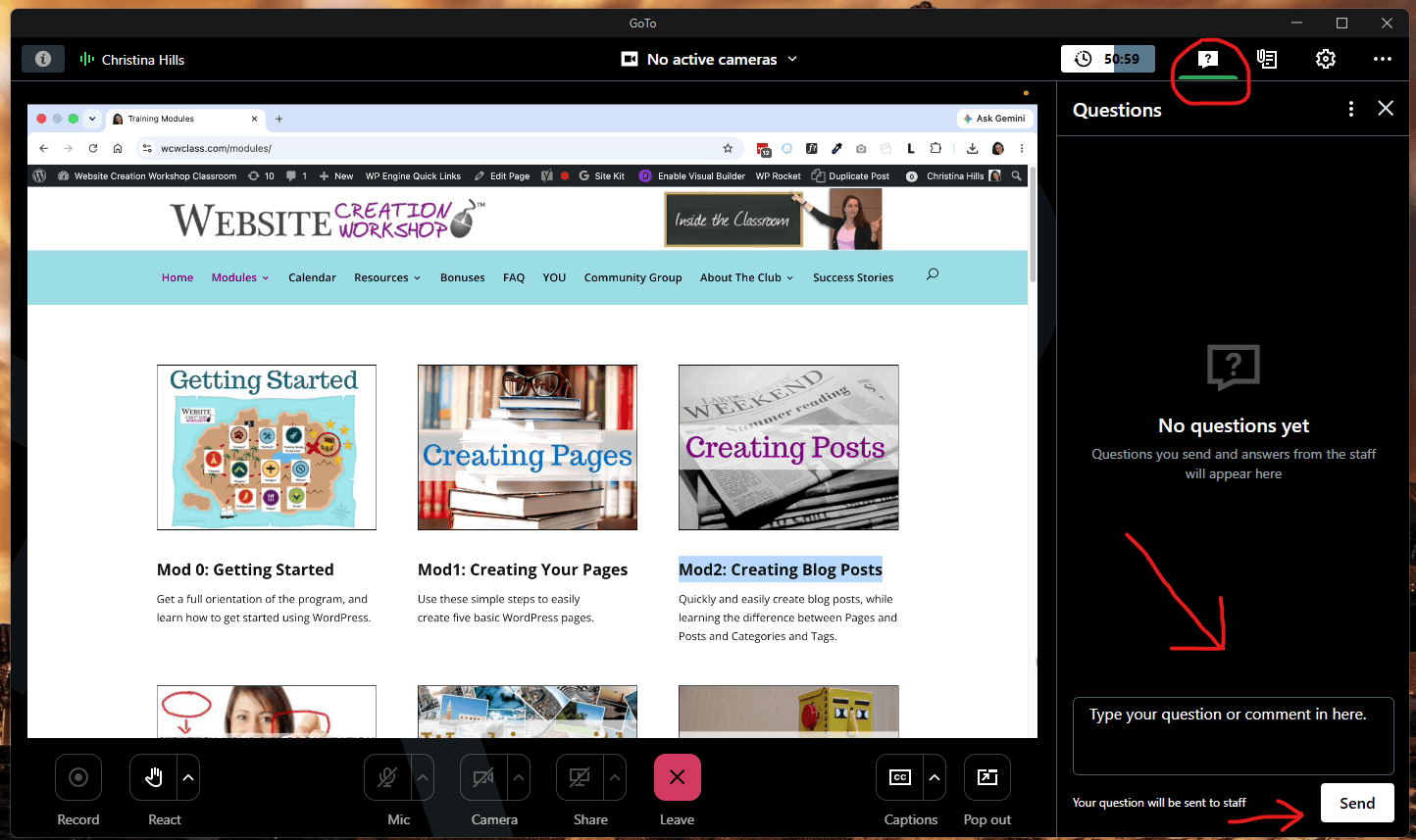
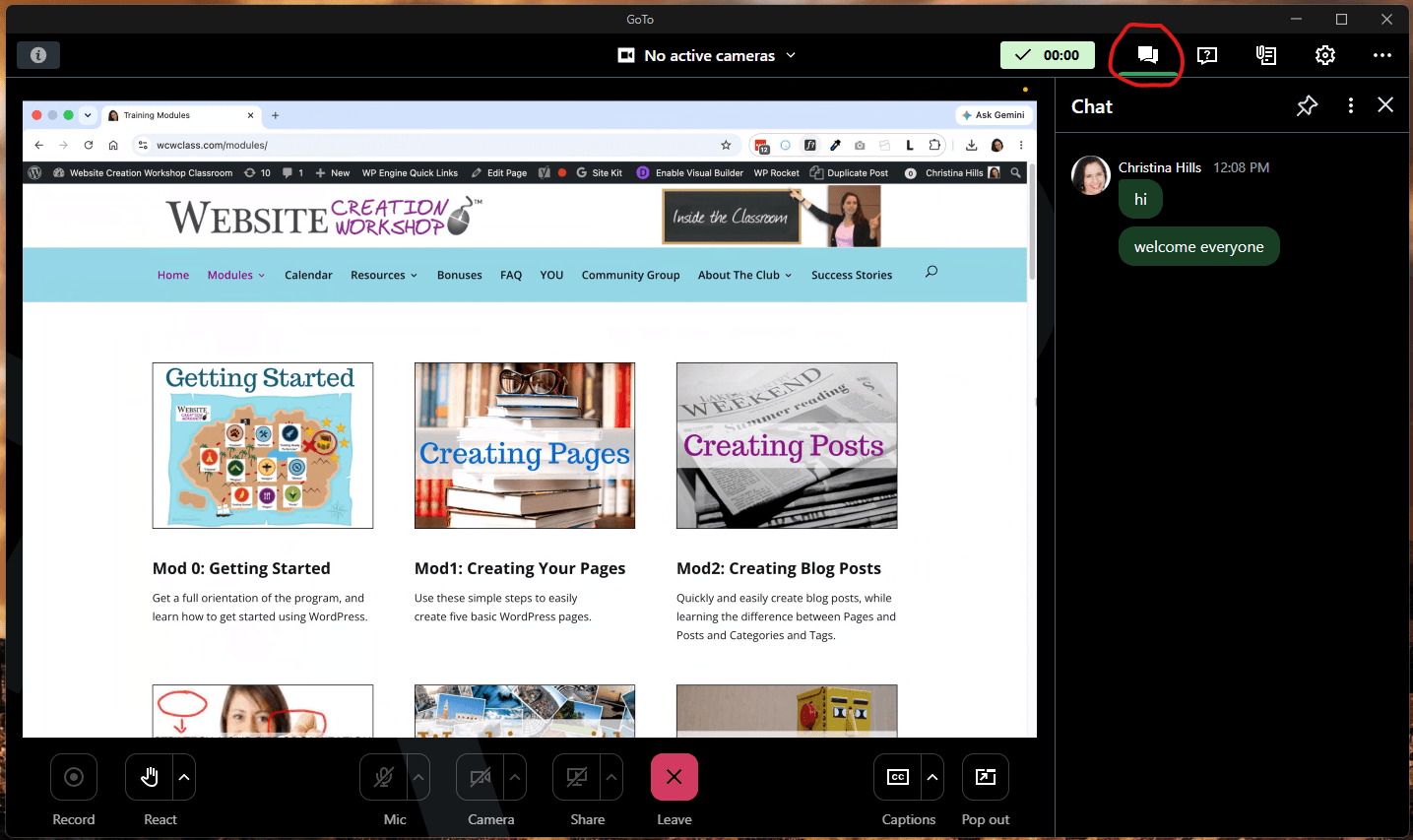
How to Find the Chat (This is only for Presenters giving information)
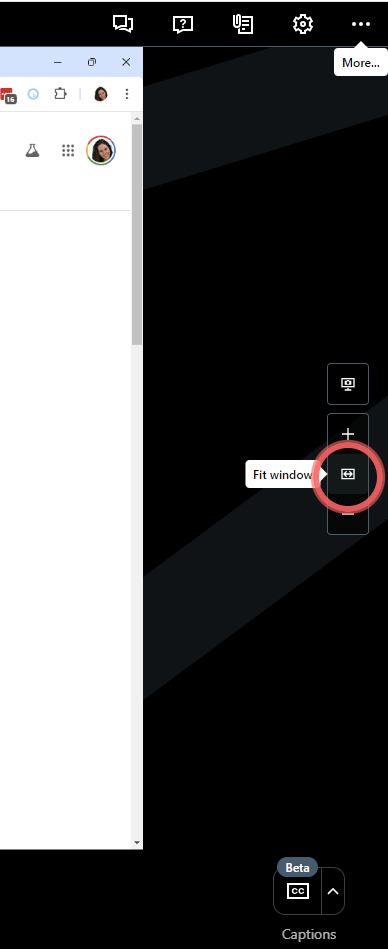
On the right side, you can zoom in, zoom out, or fit to screen.
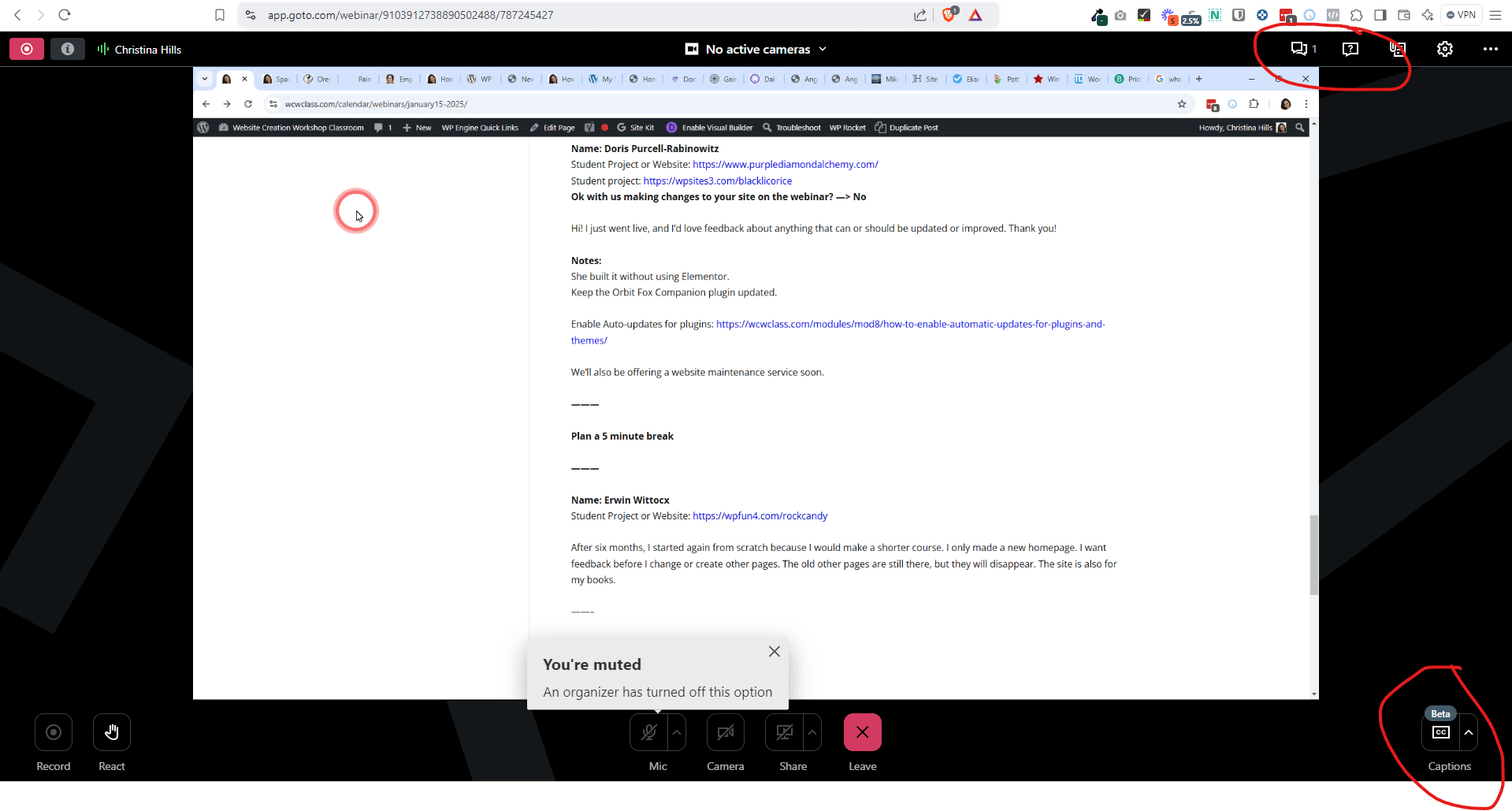
On the bottom right, you can enable captions.
If you want to learn more about how the Webinar works, then click the links below to read the Attendee Guides for PC Users or Mac Users: Attendee Guide for GotoWebinar PC or Mac Users.
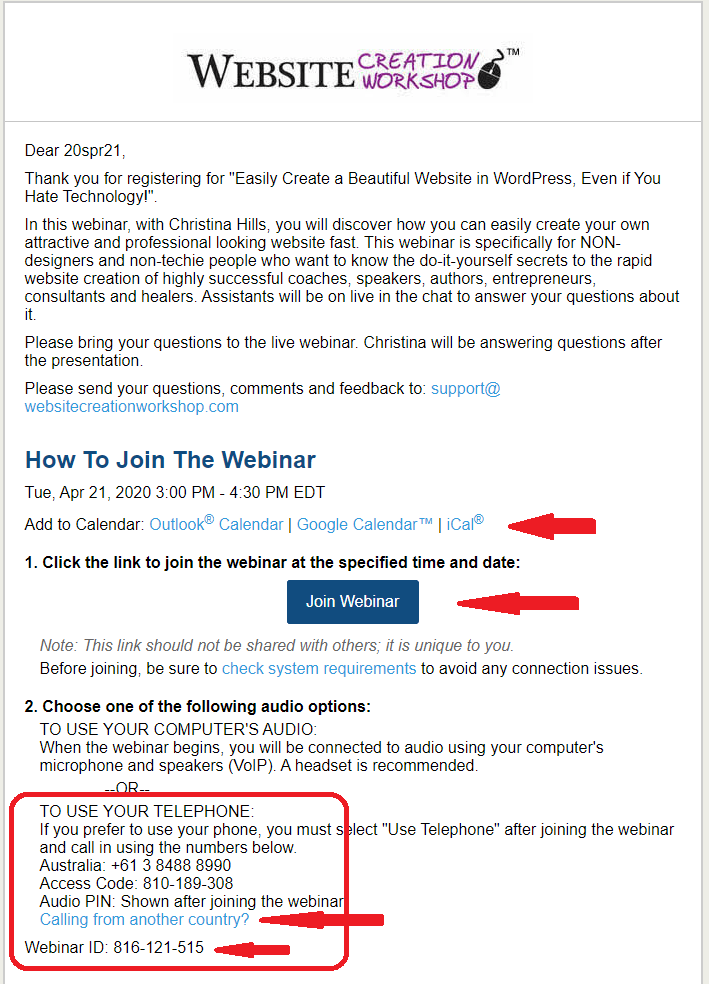
Here is a Sample Webinar Reminder
Adding the webinars to your iPhone Calendar
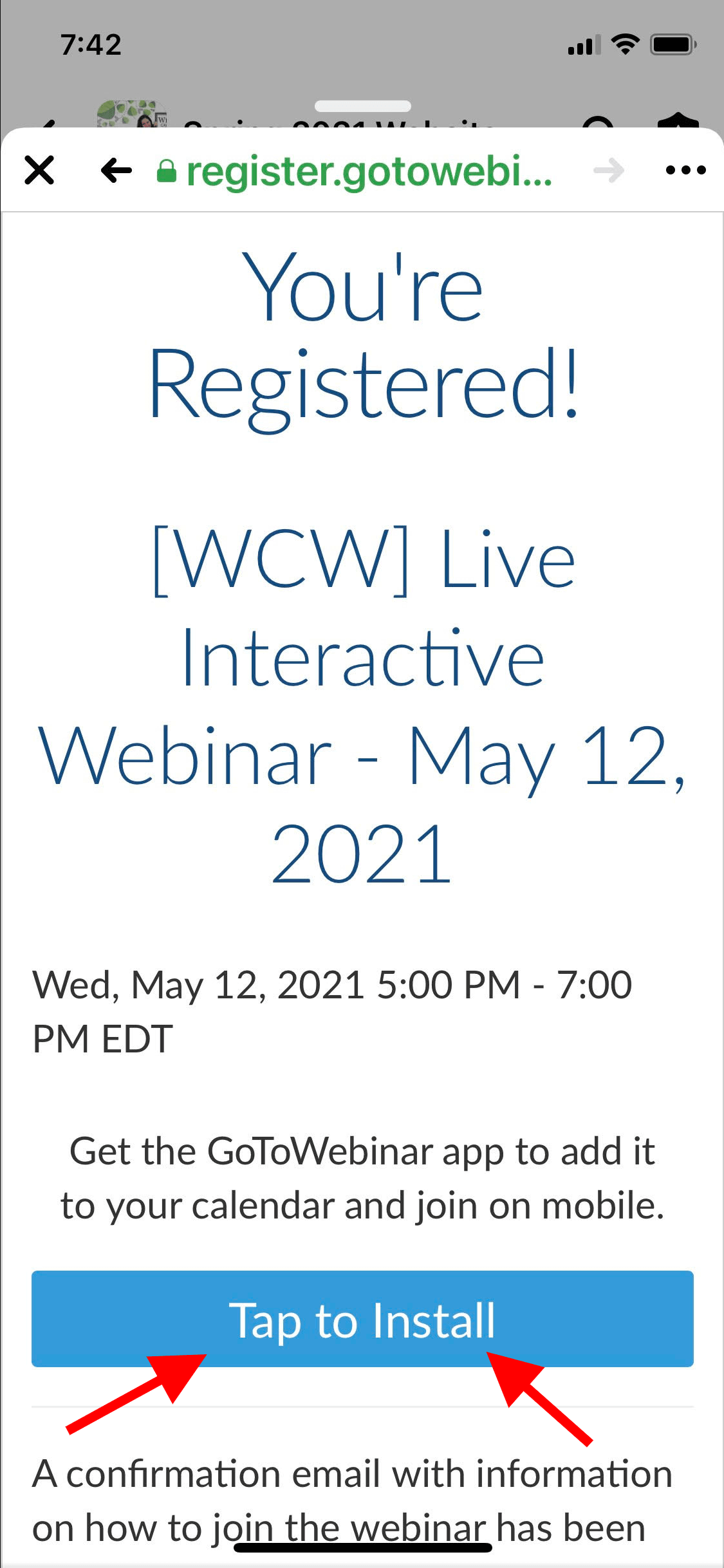
Step 1: On your iPhone, after you register for the webinar, click on “Tap to install.”
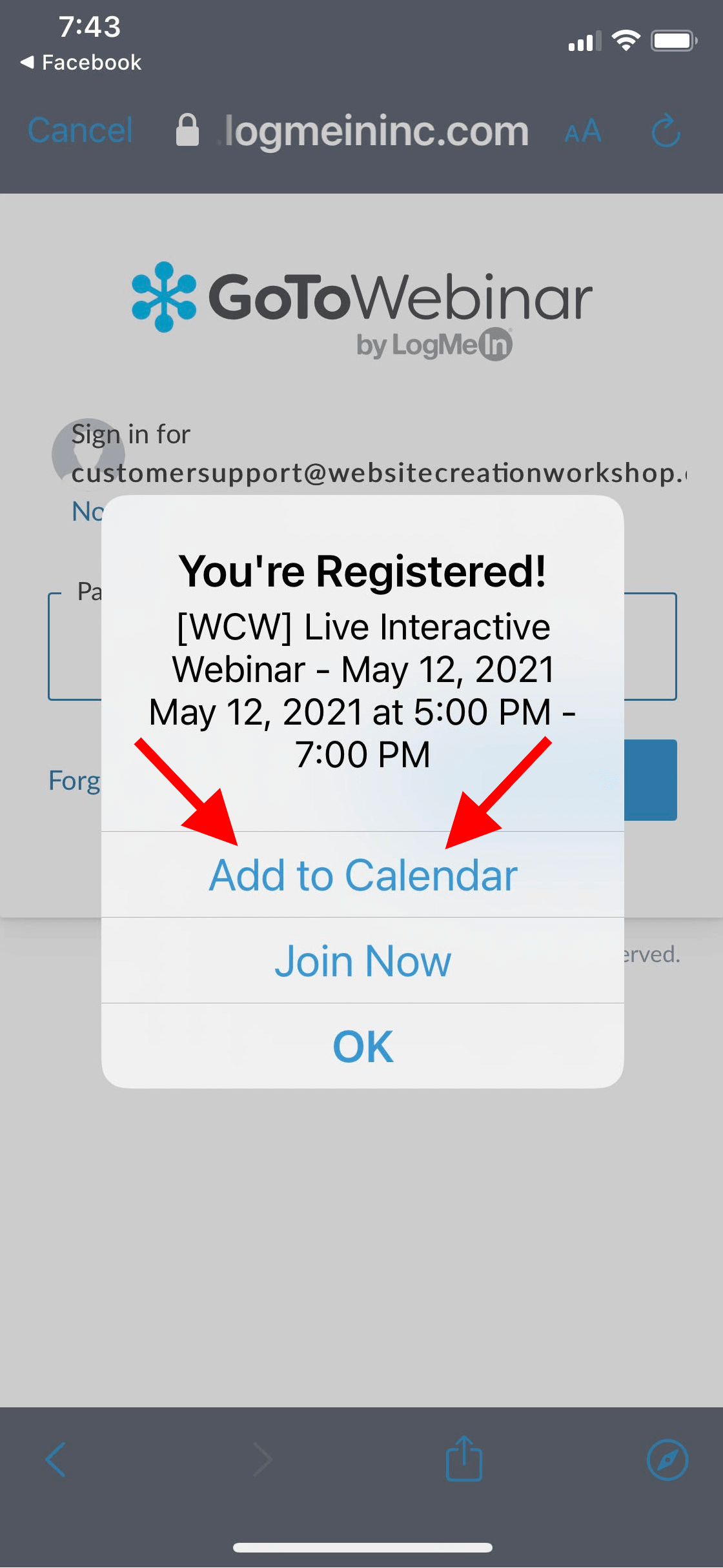
Step 2: Click on “Add to Calendar.”
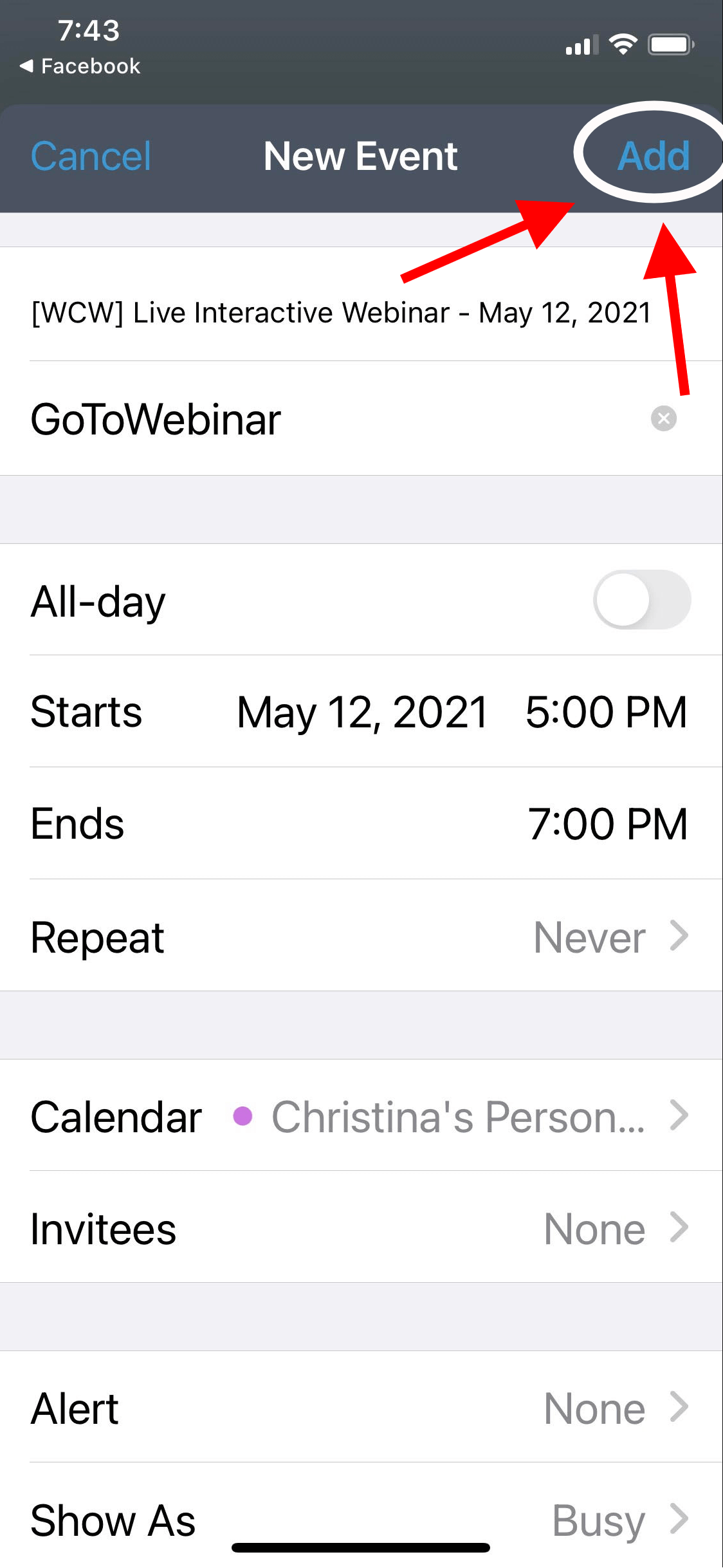
Step 3: Click “Add” in the top right corner.
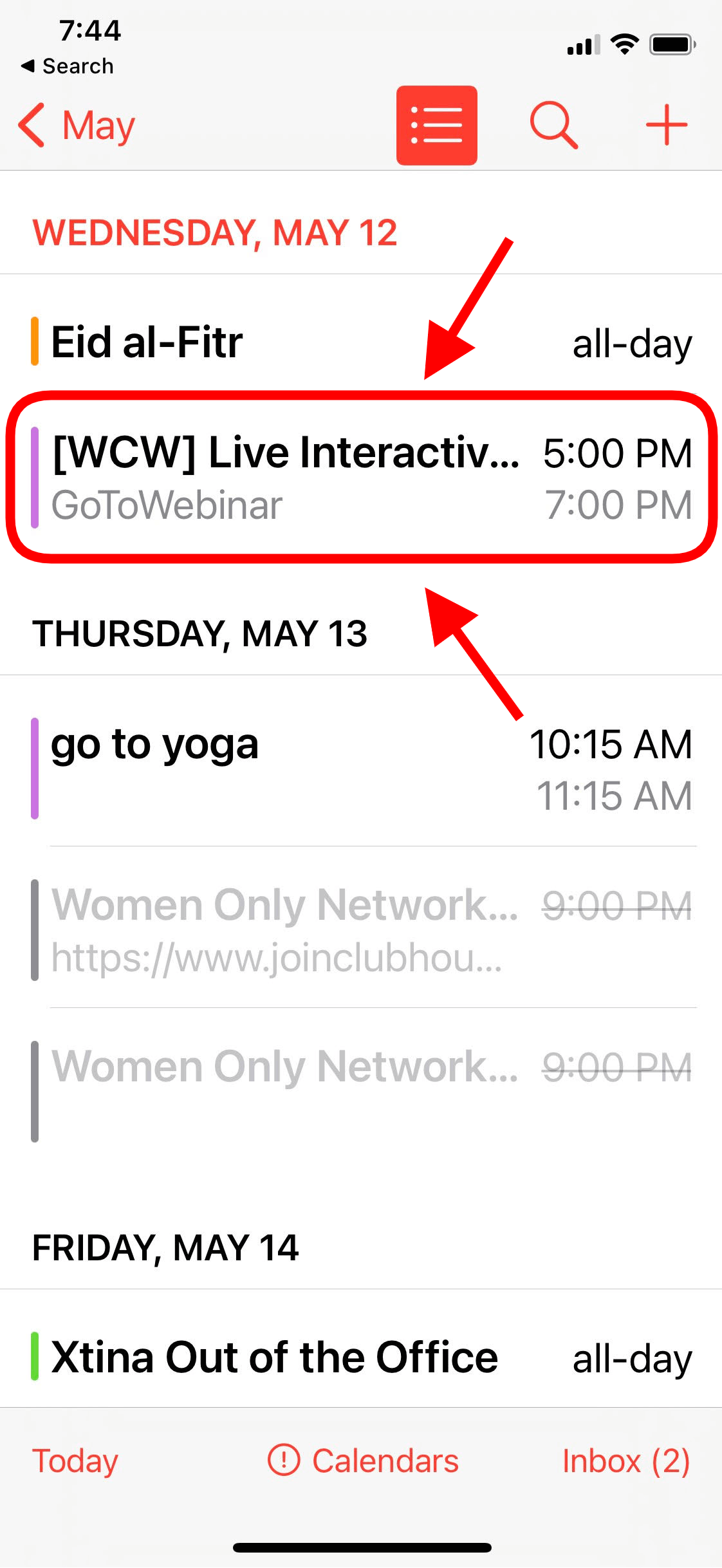
Step 4: See the event on your iPhone calendar.
FAQ
Q: What browser is best to join a webinar?
A: Chrome is the best. Other browsers will also work. If you have an issue, please make sure your browser is up to date and/or try a different browser.